Homepage selbst erstellen oder erstellen lassen?
... bei bluetronix habe Sie die Wahl


Demo Starten

Benutzer

Editor

Layout


Module

Datenbank

Statistik

Newsletter

Extras

Domain

bluetronix CMS-Software
 Bildschirm-Skalierung automatisch
umfangreiche Module & Funktionen
Artikel-Editor & Layout-Designer
Domain, Email-Adressen & Newsletter
Benutzersystem, Datenbank & Statistik
einfach über den Browser bedienbar

Starter Paket


erstellen Sie Ihre Webseite komplett selbst

 günstiger Einstieg ab 5,99 € pro Monat
bluetronix Software, Editor & Backup
Layout-Designer & Statistik
Domain & Server-Speicherplatz
ab 5,99 € p.M. Bestellen
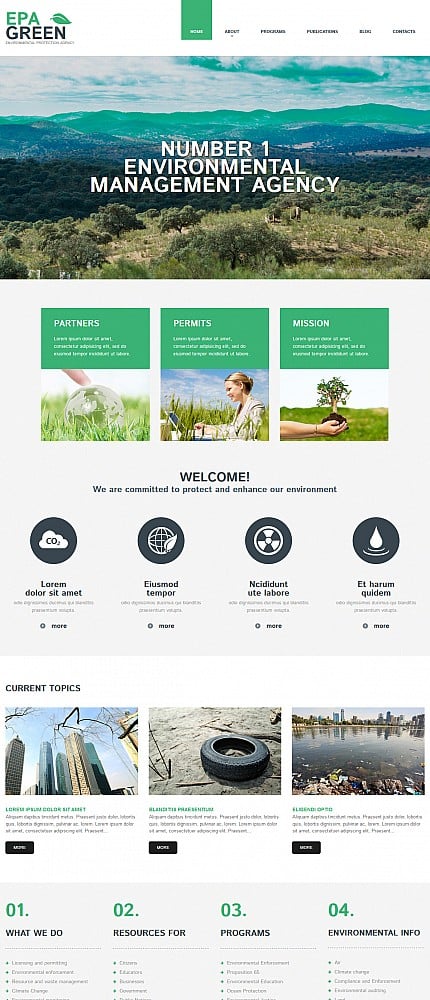

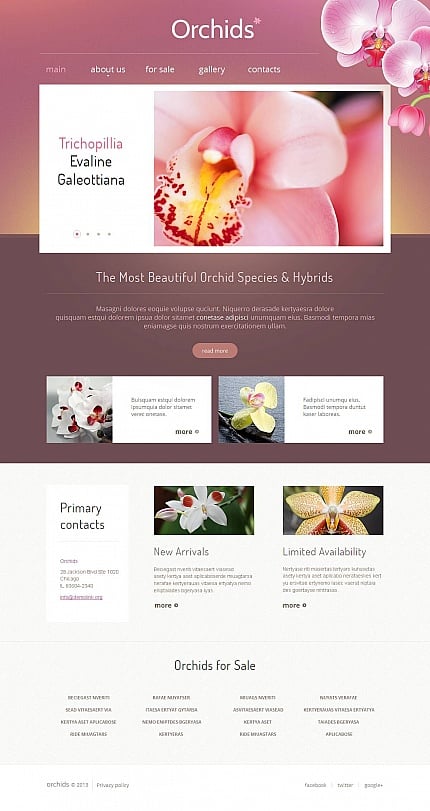
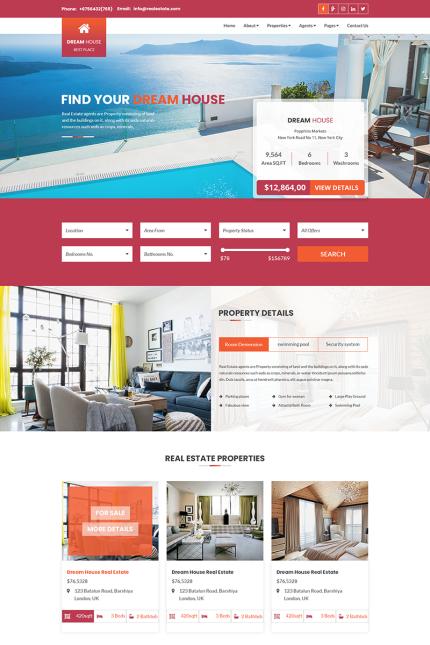



ab 149 € pro Vorlage
Webseiten Vorlagen
wählen Sie aus über 10.000 verschiedenen Layouts
hochwertige Vorlagen, individuell anpassbar
Foto Paket
ca. 2,5 Mio professionelle Foto's
ab 1€ pro Bild zusätzlich erhältlich
Webdesign Paket

Wir integrieren das Layout & die ersten Seiten*
... danach übernehmen Sie

bluetronix Software & Module
Webseiten-Vorlage Ihrer Wahl
Foto-Paket bis zu 25 Bilder
Domain, Email & Benutzersystem
Hosting für 1 Jahr inklusive
*Texte & ggf. Bilder müssen vom Kunden geliefert werden

ab 499 € Bestellen

✓
Sie möchten Ihre Homepage selbst erstellen?
wir bieten Ihnen ein einzigartiges Paket
✓
Oder doch lieber erstellen lassen?
dafür bieten wir Ihnen umfangreiche Leistungen
✓
Oder erstellen lassen & selbst ändern?
Sie können jederzeit Ihre Webseite Selbst ändern
Webpaket als Abo


einfach & preiswert starten, erstellen Sie Ihre Webseite einfach komplett selbst
Homepage Vorlagen

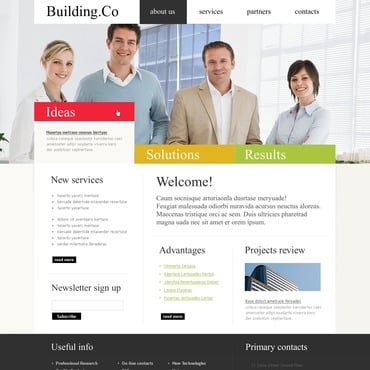

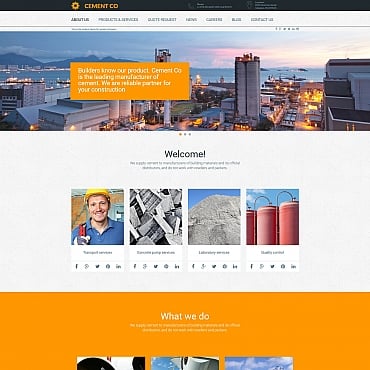
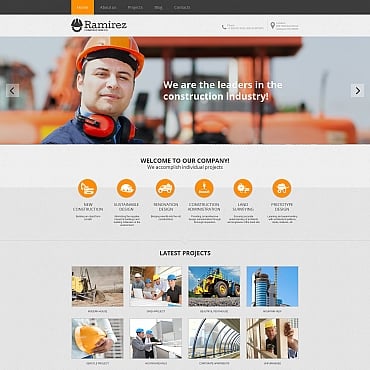
mehr als 10.000 professionelle Homepage-Vorlage mit Integrations-Service
Webdesign Paket
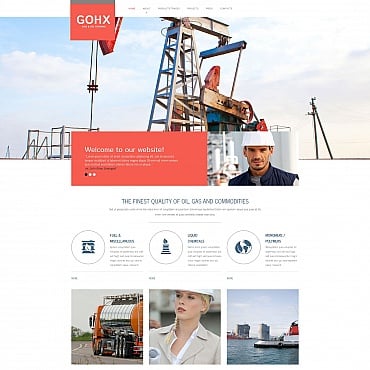


wir integrieren Ihr Wunsch-Layout & gestallten die ersten Seiten, danach übernehmen Sie